Searching and downloading
Sample Search finds samples across the projects you belong to, and a download gives you the samples with their metadata in an Excel workbook. You need to sign in. Search runs on the sample graph, see Graph search.
Find a sample by UID
The Search by UID box sits at the top of the sidebar on every page. Type a UID and press Enter to open that sample's page. It opens only if the UID is valid and you have access. Pages for samples with many relatives take longer to load.
Sample Search
Open Sample Search in the sidebar. The page has four tabs on a laptop or desktop.
| Tab | Use it to |
|---|---|
| Sample Search | Search one sample type by one attribute |
| Advanced Sample Search | Combine terms with AND, OR and NOT across all types |
| Sample Retrieval | Paste UIDs and download them with their lineage |
| Sample Deletion | Paste UIDs to delete |

Search one attribute
- Choose a Sample Type.
- Choose a Sample Attribute of that type.
- Choose an Operator, for example Contain.
- Type the value in From. Operators that take a range also use To.
- Click Search. Reset clears the form.
The info icons next to Sample Type and Sample Attribute open the sample types and attributes pages.
Associated with (optional) keeps only samples that have a sample of another type in their lineage. Pick the type, then choose Either, Ancestors only or Descendants only. For example, find tissue samples that came from a given species, or sequencing files made from them.
Advanced search
- Type a Search Value.
- Choose the Logic: Add with AND, OR or NOT.
- Optionally choose a Sample Type.
- Click Add. The term joins the Current query box.
- Repeat for more terms.
- Choose Partial or Exact matching, and optionally Associated with.
- Click Search.
The query box also reads parentheses, so (a OR b) AND c works.
The results table
Results show 1000 at a time, with a pager. The count above the table is the total. Each row shows the UID, sample type, assays, contributor and the attribute and value that matched.
- Click a UID to open the sample page.
- Type in the boxes under the headers to filter the rows that are loaded. The filters do not search the rest of the results.
- Tick rows to select them, then use the toolbar.
On a phone you get a smaller form: type a keyword, choose a type and tap Search. It shows up to 100 results and has no download.
Download samples
Search, tick the samples you want, and click Download samples in the toolbar. You get an Excel workbook.
On Sample Search a prompt asks Include all associated samples?
| Answer | You get |
|---|---|
| No | Only the samples you ticked |
| Yes | The ticked samples plus their parents and children |
Advanced Sample Search and Sample Retrieval always include the associated samples. A large download takes a while, so wait for the progress box to finish.
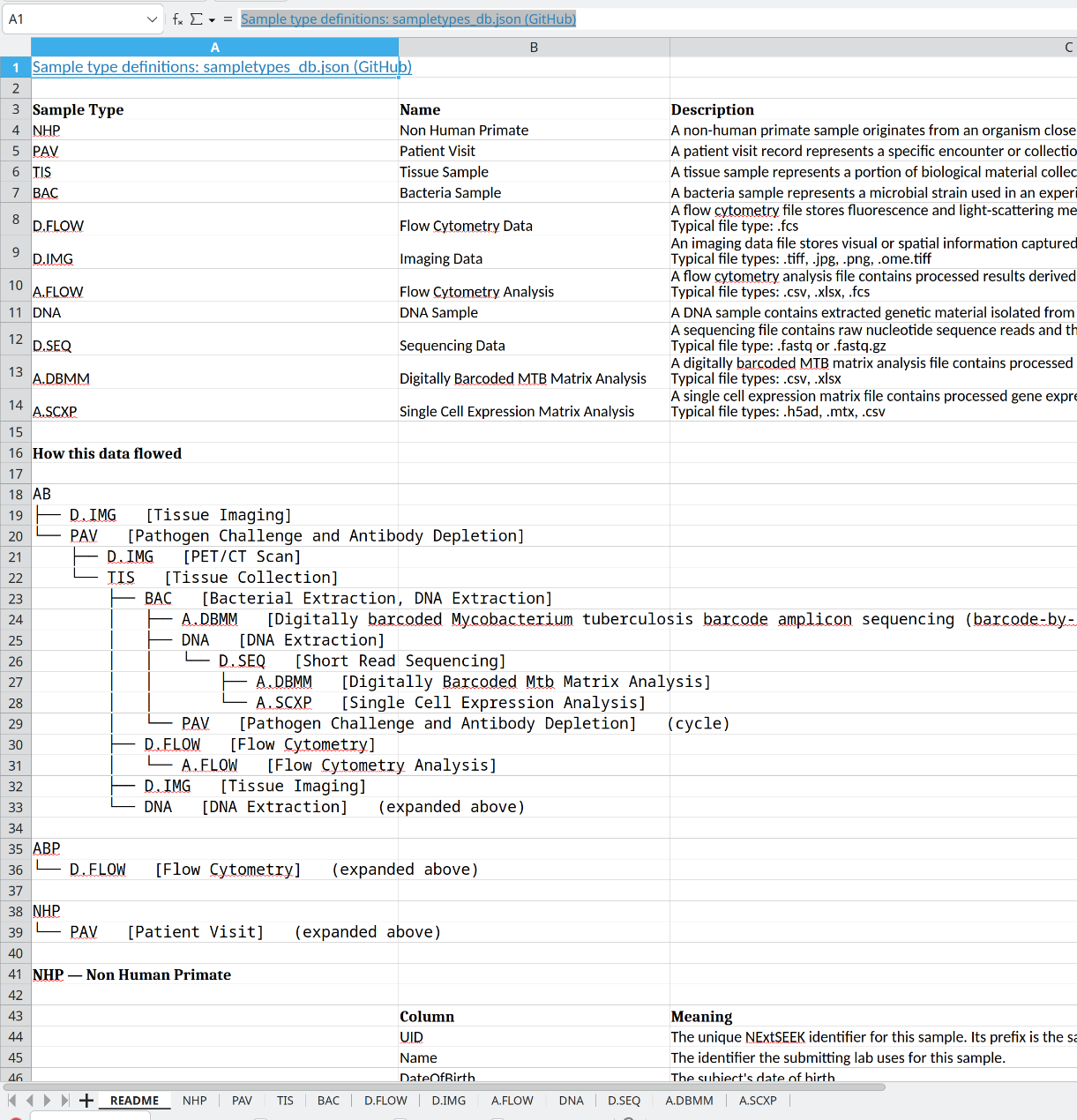
Sample Retrieval
Use this when you already have UIDs, for example from a paper or a collaborator.
- Open the Sample Retrieval tab.
- Paste the UIDs, one per line.
- Click Retrieve Samples.
You get the same workbook, with every associated sample.
Protocols and data files
Data Query in the sidebar has two pages:
- Data File Query
- Protocol Query
Each is a table of the files you can see. Filter it with the boxes under the headers. Open a file from its link in the table.
Delete samples
Use Delete samples in the toolbar, or the Sample Deletion tab, where you paste UIDs. You must own the samples or be an administrator. Type DELETE to confirm. Deletion cannot be undone.
A sample cannot be deleted while other samples still have it as a parent. Delete the children first. Each sample takes a few seconds.
To remove a protocol or data file, open it in SEEK and use its Actions menu.
Check your counts
Sample Search shows only samples in projects you belong to. If a count looks low, check your project membership, then see Graph search. For the registration side, see Uploading, and for how samples link to each other, see Data model.